

Intent Rule executions are 100% deterministic. Given the same conversation context, a rule produces the same tree walk, the same Tool calls, and the same Reply instructions every time. Determinism is what makes Intent Rules safe to deploy in regulated industries, refunds, account closures, identity verification, claims processing, where unbounded LLM reasoning isn’t acceptable.
What Intent Rules are for
Use Intent Rules for workflows that should run while the agent is handling a customer’s message. They are selected by the planner from the rule’s Description, scoped to assigned agents, and executed as deterministic behavior trees. Intent Rules are separate from Business Rules. Business Rules run from configured business events such as widget escalation; Intent Rules run only when a customer message matches the rule’s intent.Why a behavior tree
A flat list of “if X then Y” rules works for simple intent routing, but breaks down quickly:- A cancellation flow needs to extract a reason, check eligibility, call a billing API, branch on the response, and reply differently in each branch.
- A refund flow needs to look up the order, validate eligibility, check the policy window, and submit, short-circuiting cleanly at any failure.
- An address change needs to render a form, validate the input, call the customer’s address-update API, and confirm.
- A VIP customer override needs to take precedence over several other rules without being copy-pasted into each.
Node types
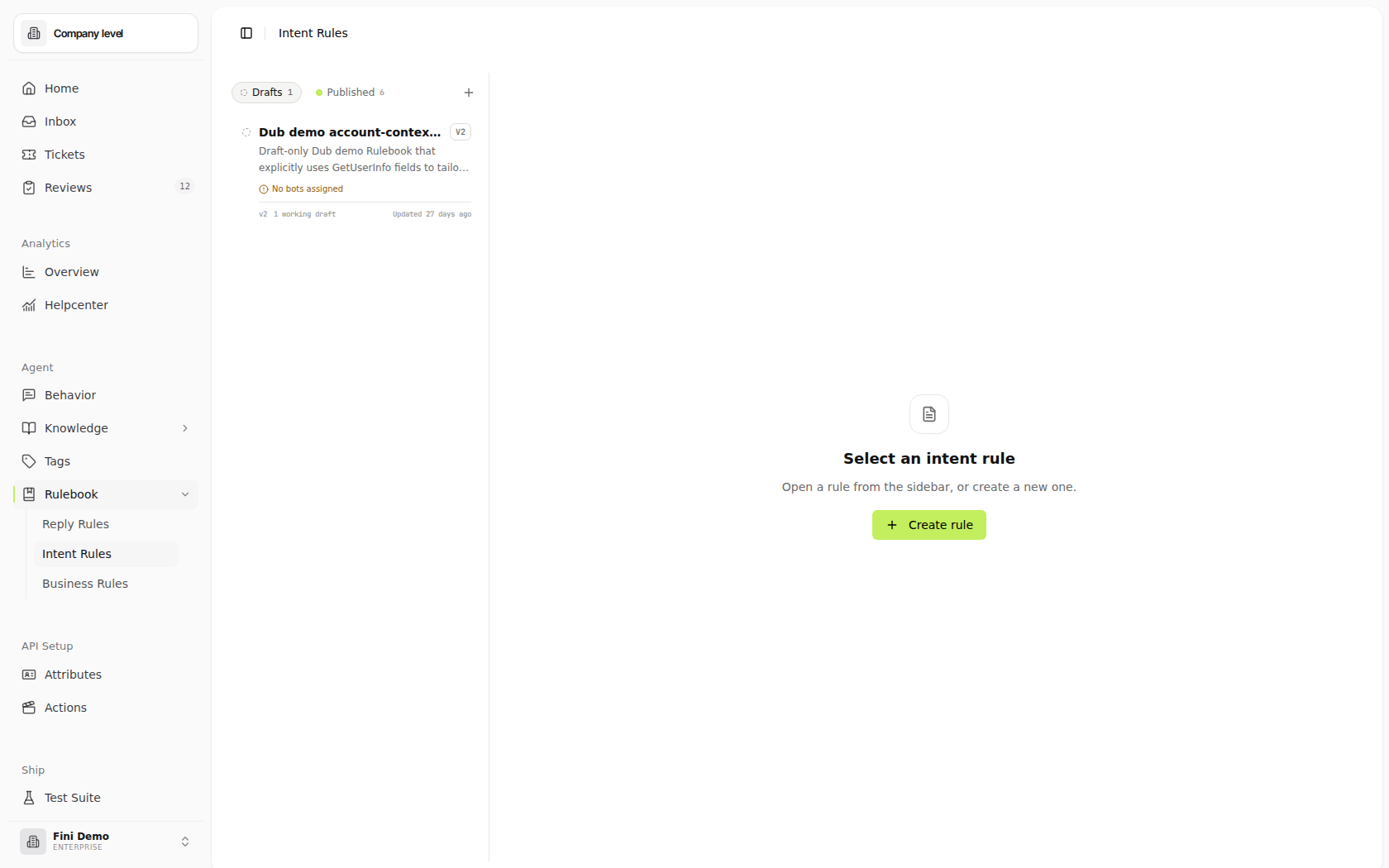
Eight node types, three composite (have children) and five leaf (do work). The legend on the empty Intent Rules page lists them all.Composite nodes
Composites direct the tree. They evaluate children in order and decide what counts as success or failure for the subtree.Leaf nodes
Leaves do the work. Each returns success or failure to its parent composite.How the tree runs
When a relevant message arrives, the runtime walks the tree depth-first from the root. At each node:- A Steps parent runs each child in order. The whole Steps fails as soon as one child fails; if all succeed, the Steps succeeds.
- A Fallback parent runs each child in order. The Fallback succeeds the moment one child succeeds; if all fail, the Fallback fails.
- A Check evaluates its predicate and returns success or failure.
- A Read prompts the LLM to extract one or more fields into tree variables. Returns success if extraction populated everything required; otherwise failure.
- A Tool invokes its configured Action with bound inputs. Returns success on clean response; failure on error.
- A Reply stages reply instructions for the agent’s composition pass. Always returns success.
- A Form renders the form in the widget and waits for input. Its children handle validation. Success when input passes validation.
Inactivity follow-ups
AReply node can schedule a follow-up while the conversation remains Waiting for customer and no new customer message arrives. Turn on Follow up after inactivity, then choose a delay: 12 hours, 24 hours, 48 hours, 72 hours, or 7 days.
Under Then, choose Send a follow-up reply or Perform an external action. Reply mode generates one concise follow-up from the current conversation history and the agent’s prompt guidelines. Action mode runs the selected Action without sending a customer-facing reply.
For an external action, select the action and configure its inputs. Input values are captured when the wait starts, not looked up again when the delay ends. The action picker excludes actions that require unsupported automatic context bindings; automatic bindings are limited to conversation source and user attributes. Delayed action outputs are not available as new tree variables for subsequent steps.
Use inactivity follow-ups when the workflow should nudge the customer after the agent has already asked for missing information or confirmation. For example, after a cancellation flow asks for the account email, a follow-up can remind the customer to send it before the rule can continue.
Follow-up replies are generated from the existing conversation. They should continue the thread, not introduce new offers, policy changes, dates, amounts, or actions that the customer did not already receive.
- Intent gate then sequence: a
Stepsat the root, with aCheckas the first child gating the workflow on intent. If the Check fails, the Steps short-circuits and the rule does nothing on this message. If the Check passes, the rest of the Steps runs. - Try, fall back, ask: a
Fallbackwhose first child is aSteps(try the primary workflow), and whose second child is aReplyasking the customer for missing information when the primary workflow fails.
How rules get selected
A single agent can have many rules attached. When a customer message arrives, Fini runs a Planning step first: the LLM reads the message and routes it to the rule whose Description best matches the customer’s intent.- If a rule is selected, its tree executes.
- If no rule matches the message, the agent falls through to its default behavior, answering from the knowledge base, asking a clarifying question, or staying silent depending on the Reply Behavior configuration.
- If a rule executes but stages a
Reply, the Reply is what the customer sees. If a rule executes but stages no Reply (e.g., the rule’s only outcome was an internal Tool call), the agent falls through to default reply composition.
Inside a Check
ACheck node uses the same condition builder as Reply Behavior. You compose predicates over four field categories and the runtime evaluates them.
Operators: the same 15 documented in Reply Behavior → Operators, Equals, Not Equals, comparison operators, Contains, Date Before/After, In/Not In, Is Null/Not Null, Is Empty/Not Empty. Predicates inside a group are joined with AND; condition groups are joined with OR.
Tree variables
Tree variables are the values that flow through a rule as it executes. They come from three places:- Read nodes extract them from the conversation (e.g., a
reasonstring). - Tool nodes populate them with the outputs of an Action (e.g.,
confirmationId,refundAmount). - Form nodes populate them when the customer submits the form (one variable per field).
- Check predicates: pick the variable from the field dropdown alongside System fields, Tag Groups, and User Attributes.
- Reply text: interpolate with
${variableName}(e.g.,Your refund of ${refundAmount} has been processed.). - Tool inputs: bind variables to the Action’s input fields.
Observability: the AI Steps trace
Every conversation Fini processes is fully traceable. Open any conversation in the Inbox and look at the AI Steps panel on the right, it shows the complete execution trace for that conversation, including the rule that ran (if any) and every node within it.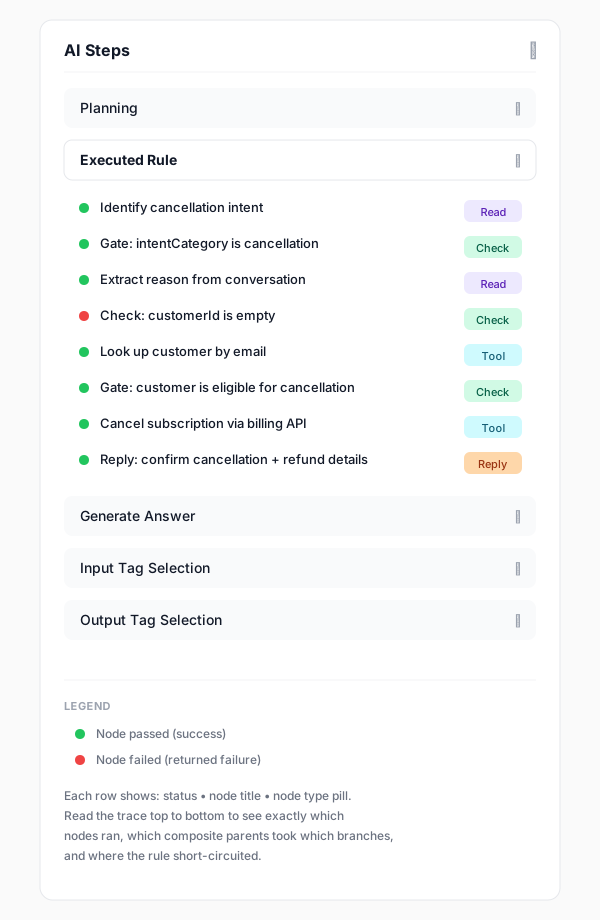
- Every node that ran, in order, including failed ones. Failure isn’t hidden; it’s how you see why a Fallback walked past one child to the next, or why a Steps short-circuited.
- Each node’s status, green dot for success, red dot for failure.
- Each node’s type pill, Read / Check / Tool / Reply / Form, so you can match the trace back to the tree visually.
- Read outputs, Tool inputs and outputs, and Reply instructions are inspectable (click into the node row to expand).
- Find a conversation where the rule should have fired (or shouldn’t have).
- Open AI Steps. Look at Planning first, did the LLM route to this rule’s Description? If not, the Description needs tightening.
- If the rule did fire, look at Executed Rule: read the trace top to bottom. Find the first red dot. That’s where the rule short-circuited.
- Click into the failing node to see what value it had. A
CheckoncustomerIdfailing meanscustomerIdwasn’t populated, work upstream to find out why.
Anatomy of a rule
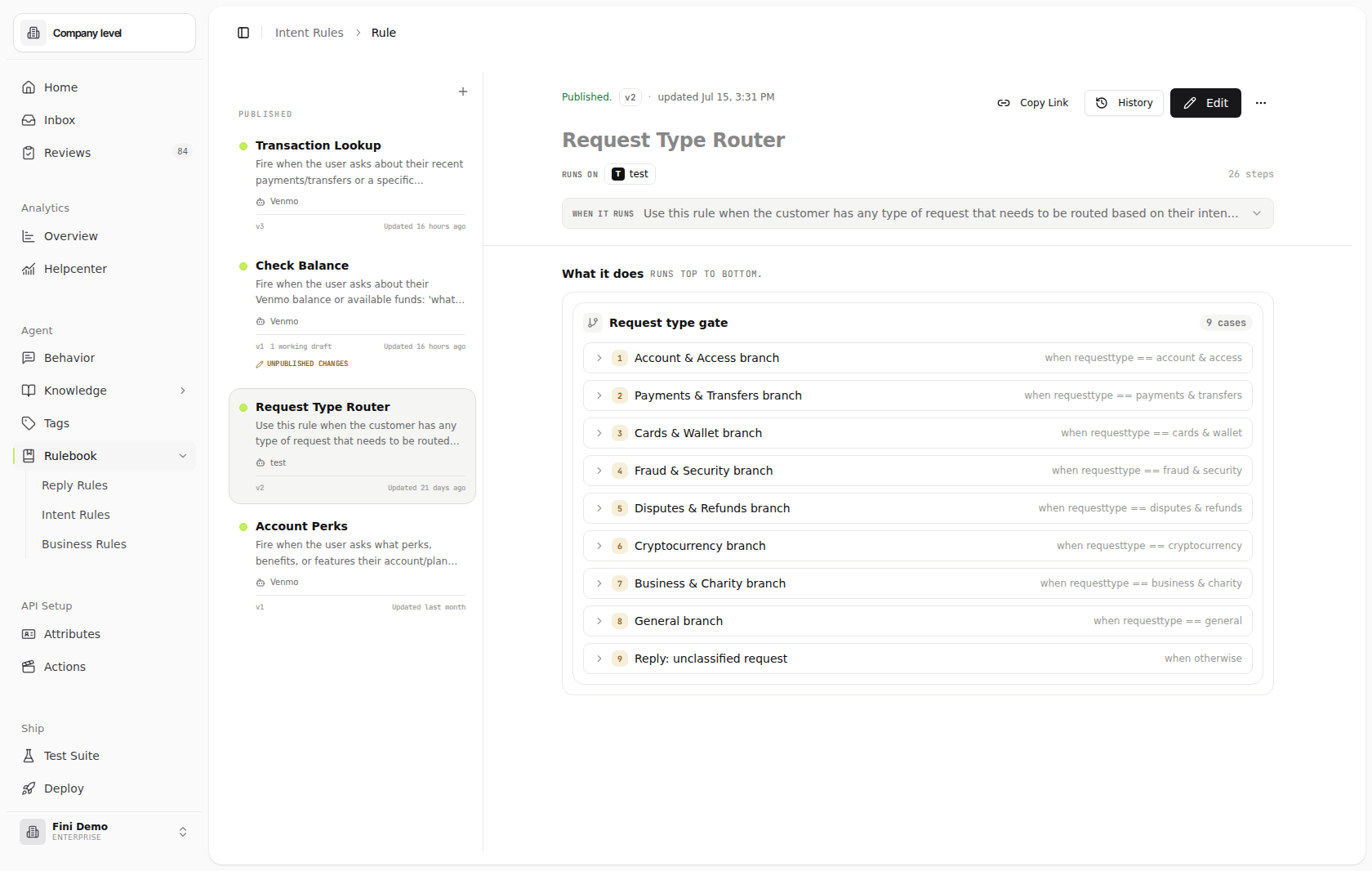
A rule has four pieces, all visible in the rule editor.
Rules also have draft and published states (covered below in Publishing and assignment).
Creating a rule
Two creation paths sit at the top of the Intent Rules page.Generate with AI
The fastest way to a working draft. Click Generate with AI (the sparkles button), describe what you want in natural language and/or upload a workflow diagram, and the LLM produces a complete tree you can refine.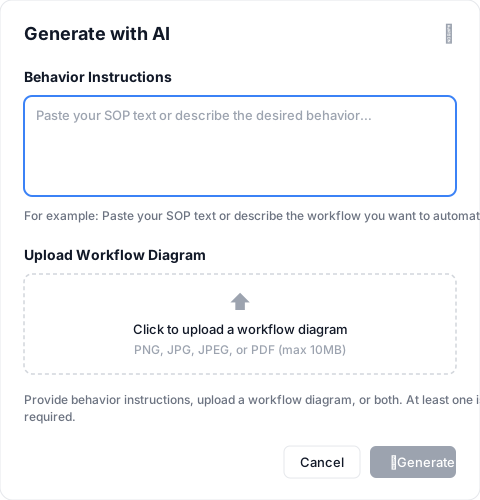
- Behavior Instructions: paste an SOP, write a description of the workflow, or both. The more concrete and step-numbered the better. “When the customer asks to cancel: (1) extract their reason, (2) verify their account, (3) call the cancel API, (4) confirm with the refund amount.”
- Upload Workflow Diagram: drag in a PNG / JPG / JPEG / PDF up to 10MB. Flowcharts, decision trees, and even hand-drawn whiteboard photos work. The model reads the diagram and translates branches into Fallbacks, sequences into Steps.
Create Rule manually
For when you know exactly what tree you want. Click + Create Rule: then build out the tree node by node.1
Set the title and description
Title shows up in the sidebar; description tells the LLM when to fire this rule (so write it with example trigger phrases, see the warning above).
2
Build the tree
The empty state starts with a single root
Steps node. Click + Add step to insert children. Each new node has a configuration panel where you set its predicate (Check), prompt (Read, Reply), Action (Tool), and so on.3
Assign agents
Pick the agents this rule applies to under Assigned Bots. A rule with no agents assigned never runs.
4
Test before publishing
Use the test panel to walk an example conversation through the tree, see Testing a rule below.
5
Save the draft
Save commits the draft. Drafts never run on live conversations; only published rules do.
6
Publish
Promote the draft to live. From the next conversation onward, assigned agents will execute the rule.
Refining an existing rule
The Refine option (visible when a published rule is open) lets you describe changes in natural language, “also handle the case where the customer mentions a billing dispute”, and the LLM proposes a new tree incorporating your changes. Review the diff, accept, save. Refining is faster than the manual editor for sweeping changes; the manual editor is faster for targeted ones. Use Generate-with-AI for initial drafts, Refine for big-picture changes, and the manual editor for small adjustments.A worked example: cancellation flow
The canonical rule that handles “I want to cancel” end-to-end.- The root
Stepsruns children in order. The first child is the intentCheck. If the LLM didn’t classify the message as a cancellation, the Check fails, the Steps short-circuits, and the rule does nothing on this message, exactly the behavior you want. - If the intent matches, the next child runs: a
Readextracting the customer’s reason into a tree variable. - The second
Checkverifies the customer is identified (customerIdis not null). If it fails, the rule stops here, see the recovery-path note below. - The
Toolcalls the configuredCancel SubscriptionAction. Its outputs (confirmationId,refundAmount,effectiveDate) become tree variables. - The final
Replystages a confirmation message with those variables interpolated. The reply composition pass writes it in the agent’s voice.
Check: customerId Is Not Null and its downstream nodes in a Fallback that has a second child:
customerId is missing, the Check fails, the Steps fails, and the Fallback moves to the second child, the Reply asking the customer for their email. This is the canonical “try the primary path; fall back if it doesn’t apply” pattern.
This is the same flow described in Actions → A worked example; the Action is the Tool node here, and the rest of the work (intent matching, extraction, conditional gating, reply composition) lives in the Rulebook tree.
A worked example: address change with Form
Forms collect typed input from the customer with built-in validation. A canonical Form rule:- The
Formnode renders a structured form in the widget. The customer fills it in and submits. - Field types (
String,Number,Date, etc.) drive input validation. Form Errorchildren let you raise custom validation errors that flag a specific field. The form re-renders showing the error message; the customer corrects and resubmits.- A successful submission populates tree variables (one per field). Downstream Tool / Check / Reply nodes can reference those variables with
${field_name}.
Chaining Tools
Tool outputs become tree variables, available downstream. A multi-ToolSteps lets you compose action chains:
Check fails, the Steps short-circuits and the rule stops. Wrap the whole Steps in a Fallback, and add a Reply child as the Fallback’s second branch, to handle the denial path with an explanation:
Check on a Number output uses numeric operators (Greater Than); a Check on a String uses Equals or Contains. Type mismatches surface at design time, not runtime.
Read vs Check vs Reply: when to use which
These are the three most common leaves and easy to confuse. A short discriminator:
Reads populate. Checks verify. Replies emit.
Testing a rule
Rulebook gives you two testing surfaces before a rule affects production conversations: generated scenarios for checking every likely branch, and a manual test run for replaying one conversation or custom context.Suggested scenarios
When a saved version or draft flow is open, the editor derives Suggested scenarios from the behavior tree. Each scenario groups related outcomes, shows the expected path through the nodes, and marks the likely terminal outcome: reply, form, stop, or continue. Open a scenario and click Try to test that path. The dialog has two modes:- Try conversation: edit a small simulated conversation history and run the path with those messages.
- Check scenario: skip message simulation and ask Fini to check the generated path using the scenario’s starting values.
Manual test run
Every rule also has a ▶ Test Run button that opens a side panel for running the tree against a sample input, without affecting production conversations.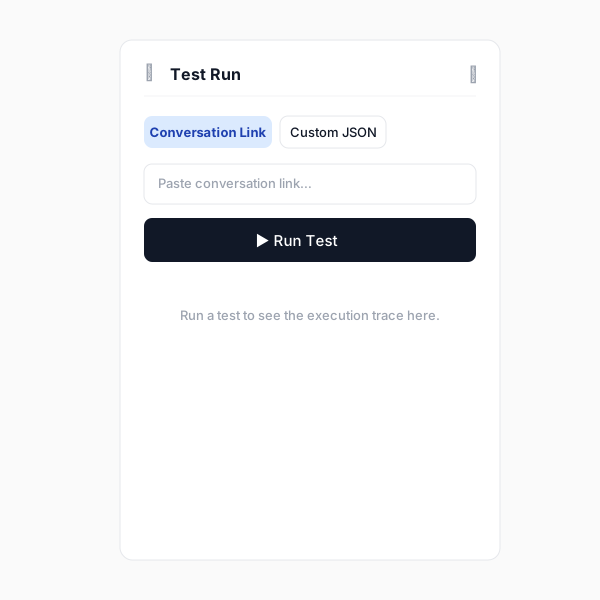
- Conversation Link: paste a URL to a real conversation from your Inbox. The runtime replays the rule against that conversation’s full context (messages, integration provider, channel, tag groups, attributes). Use this to verify the rule behaves correctly on conversations you’ve already seen.
- Custom JSON: paste a JSON object describing the conversation context. Use this for synthetic edge cases, testing what happens when a User Attribute is null, when a tag group has a specific value, when the customer message contains a particular phrase.
Publishing and assignment
The sidebar splits rules into Drafts and Published Rules. Drafts are works in progress, edit freely; they don’t affect live conversations. Published Rules run on real customer messages for their assigned agents. Save commits draft edits without publishing. Publish promotes the draft and starts running the rule live. To roll back, edit the draft and re-publish, or delete the rule. Published rules show Unpublished changes only when the draft is newer than the live version. Older drafts are labeled as outdated drafts. They stay available in version history, but opening Edit on the live rule starts from the published version instead of silently resuming outdated content. You can duplicate a published rule (rules in the list with a(copy) suffix are duplicates) to experiment with variants while leaving the original running.
Assigning rules to agents
Every rule has an Assigned Bots list. Only conversations on those agents trigger the rule. A rule with no agents assigned doesn’t run. A single rule can be assigned to multiple agents, e.g., a VIP customer override that applies across every support agent in the workspace. A single agent can have multiple rules attached, see How rules get selected for how the LLM picks one.How Rulebook interacts with Reply Behavior
These are two different decision layers:- Reply Behavior decides whether the agent responds on a conversation, direct reply, internal comment, or stay silent.
- Rulebook decides how the agent responds when it does, which workflow runs, which Actions to call, what the reply contains.
Reply nodes inject instructions into the response composition.
This means you can use Reply Behavior as a hard gate (“never engage when a human is on the conversation”) and Rulebook for nuanced behavior on the conversations where the agent is engaging.
Why a rule isn’t firing
The rule is still a draft
The rule is still a draft
Only published rules run on live conversations. Open the rule and publish it.
No agents are assigned
No agents are assigned
A rule with no entries in Assigned Bots never runs. Open the rule and select the agents it should apply to.
The Description doesn't match the customer's message
The Description doesn't match the customer's message
The LLM uses the Description to decide whether to invoke a rule. A vague description (“Handles billing things”) misses messages it should catch. Rewrite the description with concrete example trigger phrases, see the warning under Anatomy of a rule. Confirm in the Inbox’s Planning section whether the LLM routed to your rule.
The intent gate at the top of the tree is rejecting the message
The intent gate at the top of the tree is rejecting the message
Your tree probably has a
Check near the root that gates the whole branch on an intent or attribute. Open the conversation in the Inbox and look at the AI Steps trace, find the first red dot. That’s where the rule short-circuited.A Read couldn't extract the field it needs
A Read couldn't extract the field it needs
The LLM read the conversation but didn’t find the value the Read was asking for. Either the customer didn’t provide it, or the extraction prompt isn’t clear enough. Two fixes: tighten the Read’s instructions, or wrap the Read in a Fallback whose second child is a Reply asking the customer for the missing info.
A Tool's Action has a changed or missing I/O contract
A Tool's Action has a changed or missing I/O contract
Actions live at the workspace level and are referenced by ID from Tool nodes. If an Action is deleted or its input/output schema changes, every Tool node referencing it breaks. Confirm the Action still exists and its schemas still match.
A Check references a field that isn't populated yet
A Check references a field that isn't populated yet
If a Check references a Tag Group before classification has completed, or a User Attribute that wasn’t fetched (
Use in Rulebooks off), the Check fails. Verify the field is available at the point in the tree where the Check sits, Tag Groups in particular are populated after the model has read and tagged the conversation.Deletion
Deleting a rule removes both its draft and published versions. The action is irreversible; the confirmation dialog calls this out. Agents previously assigned to the rule lose access immediately.Related
Actions
Configure the external APIs that Tool nodes invoke. Actions are workspace-level; Rulebook references them.
Reply Behavior
Decide whether the agent responds at all. Reply Behavior gates run before Rulebook trees.
Tags
Configure the tag groups whose values Check nodes can reference.
Attributes
Define the User Attribute chain that exposes customer fields to Check and Tool nodes.
Inbox
Open any conversation and read the AI Steps trace to see exactly how a rule executed.
Test Suite
Run a rule against a curated set of conversations as a regression test before publishing changes.