How Inbox fits
Inbox sits at the center of Fini’s QA loop. Every other page either feeds it or pulls from it. Four things to internalize from this picture:- Everything funnels in. Whatever channel a customer reaches you on, the conversation is in Inbox. You don’t need to switch tools or learn a separate observability product per integration.
- AI Steps is the universal trace. Every Fini reply on every conversation has the same structured trace, Planning, Attributes, Rules, Tag Selection, and so on, regardless of how the conversation arrived.
- Refine → Replay → Lock-in is the standard workflow. Find a broken reply, use Refine with AI to draft a prompt, knowledge, or rule change, replay the conversation to confirm, then add it to a Test Suite so it never breaks again.
- Inbox feeds Test Suite and Knowledge. Inbox isn’t a terminal observability page; it’s where production conversations become permanent regression checks and become new knowledge.
Layout
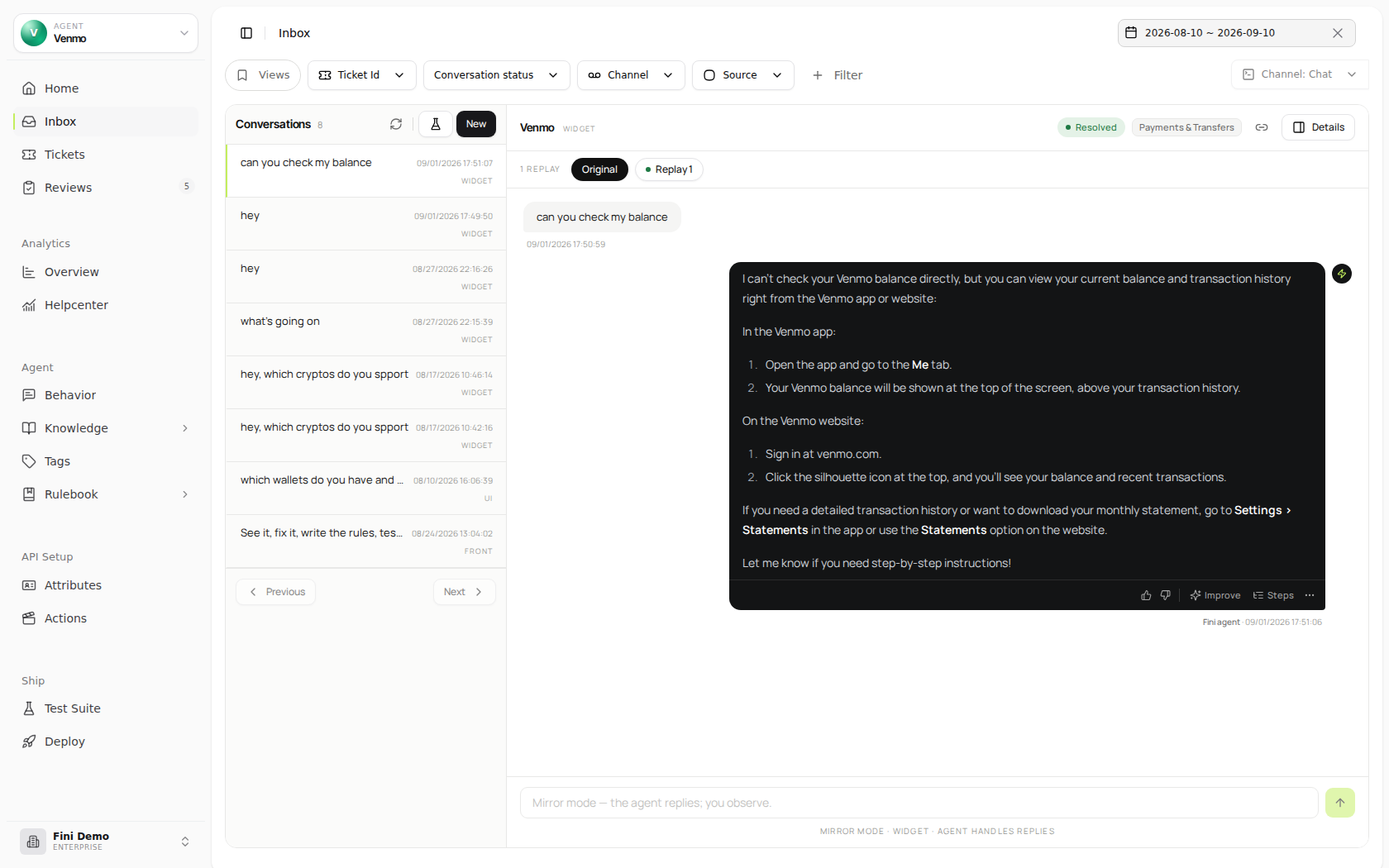
Three panels and a header. If the selected agent has no matching conversations in the chosen date range, the list shows “No conversations yet” and the detail pane shows “Select a conversation.” Workspaces with native ticketing enabled use a merged Inbox layout instead. The first screen is a full-width ticket queue with assigned, unassigned, priority, status, and saved-view controls. New widget and native email conversations arrive as tickets automatically. Older unticketed widget and native email conversations stay visible and can still be converted. Opening a conversation in a native-ticketing workspace opens the ticket workspace: ticket controls, a reply/internal-note composer, related tickets, an ownership indicator, and the same AI Steps and feedback tools used for debugging.Left rail, sidebar
The standard Fini sidebar. Inbox appears near the top under the Agent section.Filter bar (top)
Chips for the most-used filters across the top, + Filter to add more from a dropdown, plus three top-right controls:- Bot picker: all conversations are bot-scoped. Switch bots from the top-right dropdown; the list refreshes.
- Date range: defaults to the last 30 days. Click to expand to a custom range.
- Channel: Chat / Email: quick toggle between channels, separate from the broader Channel filter chip.
Conversations list (middle)
Paginated list of every conversation matching the current filters, ordered by most recent activity. Each row shows:- Title: the conversation’s subject if set, otherwise the first user message. If neither is available, the row shows
(Empty subject line)as a fallback. - Source tag: a 2-3 letter pill indicating which integration the conversation came from:
zen(Zendesk),wid(widget),ui(UI metadata), and similar for each connected integration. - Last activity time: relative for recent conversations (e.g.,
15:45:08), absolute date for older ones (e.g.,05/18/2026 16:33:15).
Conversation thread (right)
The full message-by-message exchange. The thread renders different message types in different colors (see below). Above the thread, the conversation header shows:- The conversation title and source integration
- A row of LLM-applied tag pills (
Escalated to Human Agent,recruiter,Waiting for Customer, sentiment, and so on), these come from the agent’s Output Tag Selection on this conversation, covered in AI Steps - A Conversation link button, copies a shareable URL anyone on your team can use to open this exact conversation in Inbox
- A Metadata button, opens the Conversation metadata side panel
Message types and colors
Inbox renders four distinct message types, color-coded so you can scan a thread quickly:User messages
Black bubbles, aligned right. The customer’s side of the conversation, regardless of channel, same color whether the message arrived via widget, Zendesk, Intercom, or any other source.
Fini agent messages
Near-black bubbles, aligned left. Replies written by Fini. The sender chip reads Fini agent so you can separate Fini-authored replies from teammate replies at a glance.
Human agent messages
Violet-soft bubbles, aligned left. Replies from human agents on your CRM side. Because Inbox is a two-way mirror, when one of your support reps replies in Zendesk, the message also appears here with the Human agent sender chip, so you can see exactly how a conversation was handed off and what the human said.
Internal notes
Yellow bubbles labeled Internal note. Internal-only commentary that isn’t visible to the customer. Can be written by Fini (e.g., a triage note explaining why the agent escalated) or by your human agents in the CRM (e.g., context notes between teammates on a ticket).
Where conversations come from
Every connected channel feeds Inbox. The source tag on each conversation row tells you which integration the conversation originated from. Connections are configured under Deploy; the full per-integration field catalog (what data each integration exposes) is documented under Attributes.Native ticketing
Native ticketing turns Inbox into a lightweight support workspace for conversations Fini owns directly: widget and native email. In native-ticketing workspaces, the Inbox list is the ticket queue; there is no separate agent-mode switch. Conversations from helpdesk integrations, such as Zendesk, Intercom, Front, HubSpot, Salesforce, Gorgias, LiveChat, Microsoft 365, and Deskpro, remain mirrored in Inbox but are not native Fini tickets. Ticketized conversations have:- Ticket number: allocated when a native escalation creates a ticket or when a teammate converts a conversation manually.
- Group: the agent group queue the ticket belongs to. Groups can be assigned manually or by tag routing from Agent groups.
- Assignee: the teammate currently responsible for the conversation.
- Priority:
Low,Normal,High, orUrgent. - Status: a read-only badge in the Details panel. You can see the current conversation status, but cannot change it from this panel.
- Subject: an editable title for the ticket.
Close and reopen native tickets
The ticket queue starts on Open. Switch to Closed to find tickets that have been taken out of the working queue; your other filters and date range still apply. In a ticket, click Close ticket to remove it from open queues, open-ticket counts, and the assignee’s routing workload. The ticket displays a Closed badge and a banner with Reopen. Closing does not delete the conversation, change its Conversation Status tag, clear its assignee, or return a human-owned conversation to Fini. Click Reopen to put the ticket back in the open queue. A new customer message or a teammate’s customer-visible reply also reopens it. An internal note does not. Existing reassignment rules still apply when a customer replies to a ticket whose assignee is unavailable; see Agent groups.Filtering and finding conversations
The filter bar narrows the list. The visible chips cover the most-used filters; + Filter opens a dropdown with the rest. Use Views to save a filter setup you come back to often, such as recent thumbs-down replies, escalated widget chats, or a specific knowledge slice. A saved view stores the active filters only. It does not store the date range, so applying a view keeps whatever time window you already selected.Default chips
filter
Find a specific conversation by its source ticket ID. Drop in a Zendesk ticket number, an Intercom conversation ID, and Inbox jumps straight to it.
filter
Filter by Fini’s classification of where the conversation is, open, closed, escalated, waiting for customer, and so on. The status comes from the agent’s Output Tag Selection (Conversation Status category).
filter
Chat vs. email. The top-right Channel toggle is a quick version of this filter; the chip version lets you combine with other filters more cleanly.
filter
Filter by integration, widget, ui, zendesk, intercom, front, hubspot, salesforce, gorgias, livechat. Useful when debugging behavior specific to one channel.
Additional filters in the + Filter dropdown
filter
Text search across customer messages. Literal text match, search for the actual phrase the customer used.
filter
Text search across agent replies. Useful for finding all conversations where the agent said a specific phrase (helpful when you’ve published a prompt change and want to verify the new wording is landing).
Question and Answer search matches ordinary message text. Email addresses and formatted phone numbers are encrypted at rest, so those exact PII values are not searchable from these filters.
filter
Show only conversations where the agent used a specific knowledge article. Useful for “is this article actually working?” and “which conversations is the agent leaning on this article for?”
filter
Yes or No. Yes shows only conversations the agent actually replied on. No shows conversations where the agent stayed silent (because of Reply Rules, because the channel wasn’t enabled, because escalation kicked in immediately). The most useful filter when debugging “why didn’t the bot reply?”
filter
Filter to conversations where someone left a thumbs up, thumbs down, or either. Combine with date range to find recent thumbs-down replies that need attention.
filter
Filter to conversations where a text feedback note was left, separate from a thumbs vote. Notes carry more context than thumbs; this filter surfaces the conversations your team has explicitly commented on.
filter
Filter by any LLM-applied Output Tag, Conversation Status values (Waiting for Customer, Escalated, Resolved), Sentiment (Neutral, Positive, Negative), General Tags, Knowledge Gap, and so on. The tag pills you see in the conversation header are the same set.
filter
Conversations where someone has marked feedback as resolved or actioned. Useful for tracking which thumbs-downs have been addressed and which are still open.
AI Steps: what the agent actually did
For every Fini reply, the light bulb icon on the message opens the AI Steps sidebar, the per-message execution trace. This is the single most powerful debugging surface in the product.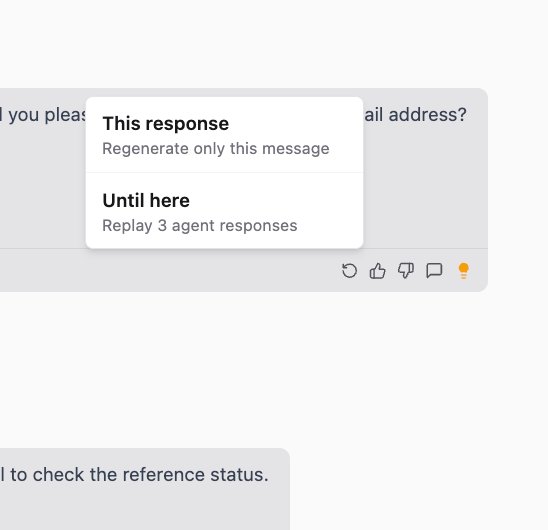
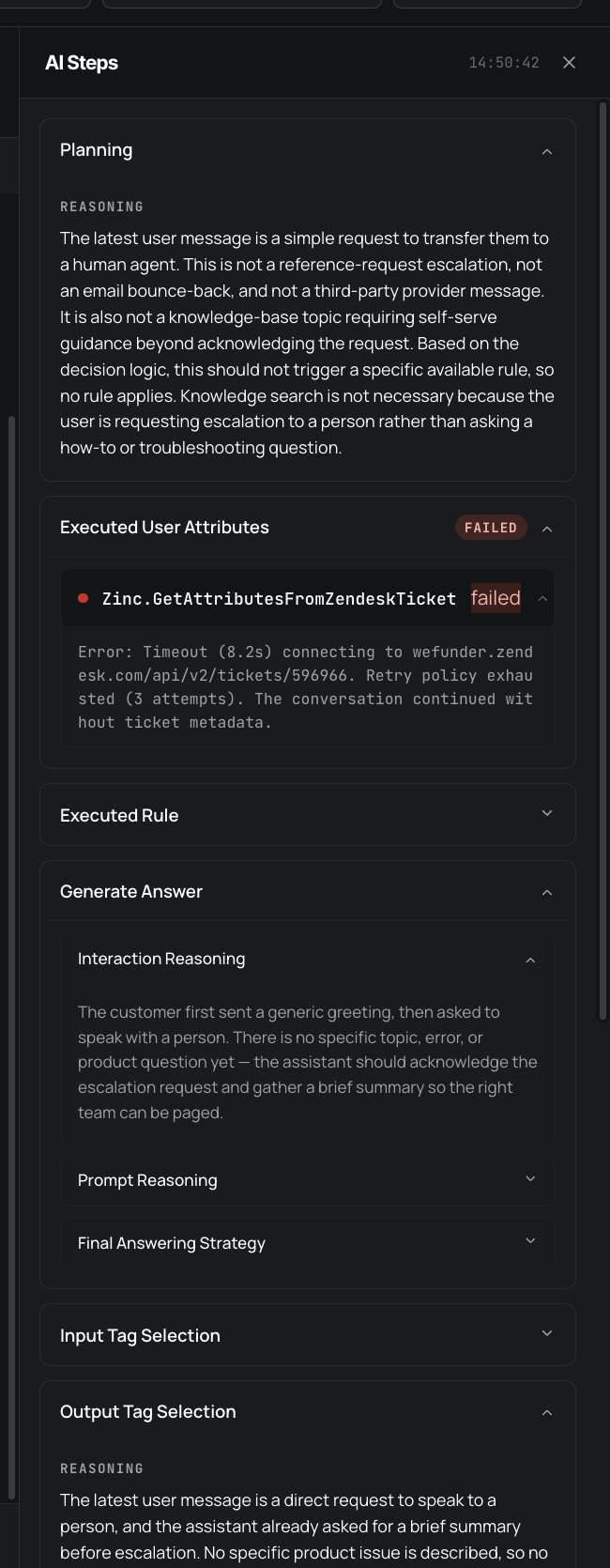
Planning
A reasoning paragraph capturing what the agent decided to do with this customer turn before executing any rule or generating a reply. Typical content: “This is a request to transfer to a human, not a knowledge question; the agent should acknowledge and proceed to escalation.” or “The user is asking a how-to question; no escalation needed, knowledge search applies.” This is the LLM’s plan that sets up everything that follows. When the agent took an unexpected branch (“why didn’t it search knowledge?”), Planning usually has the answer, the agent’s reasoning at the routing layer is captured here verbatim.Relevant Memories
When the answer used conversation memory, AI Steps shows a Relevant Memories section between Planning and Knowledge Search. It lists the memory summaries selected for this reply, with the original conversation date when available. Use this section when a reply sounds overly personalized, assumes prior context, or references something the customer did not say in the current conversation. If a memory should not have influenced the answer, fix the memory source or the agent’s memory usage rules rather than editing the conversation itself.Relevant Memories appears only when the reply was generated with selected memories. If the section is missing, the answer did not use stored memory for that turn.
Executed User Attributes
Every User Attribute Fini fetched for this conversation, each with an execution status:- Success (green dot), the attribute’s full data collection chain ran and returned values
- Failed (red dot), one of the chain’s API calls returned a non-2xx status, or the JSON path mapping didn’t match the response, or a required input was missing
null, and the agent compensates with a generic answer.
Executed Rule
The Rulebook walk: every rule the agent attempted, in order, with each rule’s nodes underneath. Each node has:- A colored status dot: red for failed or short-circuited, green for passed
- A node-type pill:
Check(green),Read(purple),Tool(cyan),Reply(orange), matching the same color scheme used in the Rulebook editor
Check node, the dot is red and the rule stops there, Fini moves to the next rule in priority order. When a rule completes through a Reply node, every preceding node is green and that’s the rule that produced the response.
Reading the Executed Rule view top-to-bottom tells you exactly which rules were considered, why each was rejected, and which one finally produced the answer. For “the agent did the wrong thing” bugs that bottom out at a rule branch, this view is the diagnosis.
Generate Answer
When the agent generated an LLM answer rather than executing a rule’s Reply node, this section shows three sub-collapsibles:- Interaction Reasoning: how the agent interpreted the customer’s message in the context of the conversation so far
- Prompt Reasoning: what the agent decided about how to respond, given retrieved knowledge and any constraints from the Behavior prompt
- Final Answering Strategy: the chosen approach for the reply text (tone, structure, what to include, what to omit)
Input Tag Selection and Output Tag Selection
The agent’s tag classification for this turn. Input Tag Selection is what the agent inferred about the customer’s message: was it a question, a request to escalate, a complaint, etc. Used internally by the agent’s planning. Output Tag Selection is the resulting set of tags applied to the conversation. Each tag is organized by category, typical categories include:- Conversation Status: Waiting for Customer, Escalated, Resolved, In Progress, etc.
- Sentiment: Positive, Neutral, Negative
- Checks: internal classifications used by Reply Rules and reporting
- Errors: when the agent detected something went wrong (a tool failure, a knowledge gap)
- General Tags: workspace-specific tags for routing and analytics
- Knowledge Gap: flagged when the agent couldn’t answer confidently
Conversation metadata
The Metadata button (top right of the conversation header) opens a side panel with three collapsible sections, the conversation-level companion to per-message AI Steps.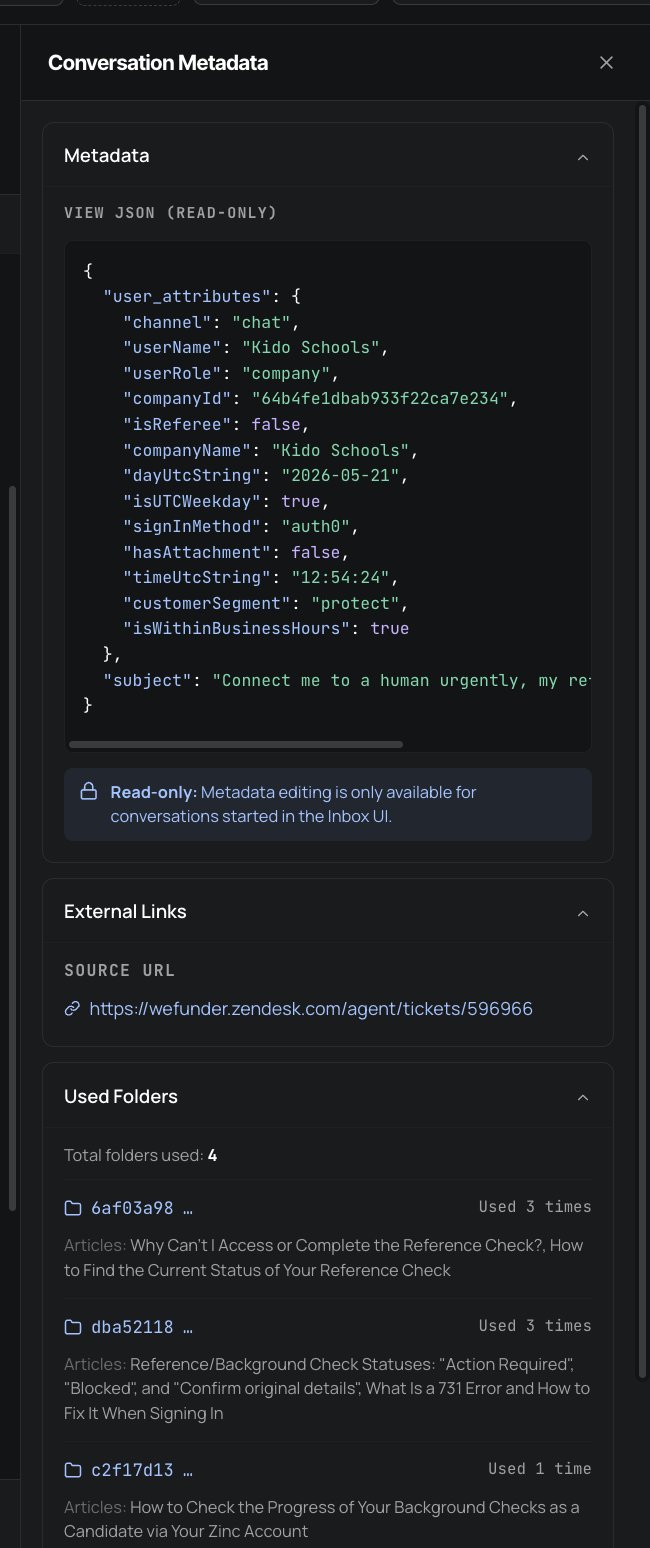
Metadata (JSON)
Read-only JSON of every field Fini knows about this conversation. Typical content:user_attributes: the metadata payload from the channel: channel type, user identity (name, email, role, company ID), time and day fields (with UTC and weekday flags), attachments flag, sign-in method, custom segments your app passed in, business-hours flagsubject: the conversation’s subject line, if any
External Links
The Source URL pointing back to the original ticket in your CRM (e.g.,https://yourcompany.zendesk.com/agent/tickets/596966). One click to jump from a debugging trace in Inbox to the live ticket in your CRM. Handy for handoffs (“here’s what the agent did, here’s the live ticket if you want to take over”) and for cross-referencing with CRM-side notes that aren’t visible in Inbox.
Used Folders
Every knowledge folder the agent drew from across the entire conversation (not just one turn), with usage counts and the article titles inside each folder. Each folder is identified by its hashed folder ID, clicking a folder ID opens that folder in the Knowledge section. This is the conversation-level aggregate of the per-message knowledge sources. Use it to:- Spot which knowledge areas the agent is leaning on most for this kind of conversation
- Identify folders that contain stale or wrong articles that need a rewrite
- Confirm the agent isn’t pulling from a folder it shouldn’t be (e.g., an internal-only folder leaking into customer-facing replies)
Per-message actions
Hover over any bot message and you see an icon row in the bottom-right of the bubble:Replay
Re-runs the agent against the current state of the bot. Two modes covered in Replays and regeneration. Use this to confirm a fix you just shipped actually produces a better answer on a known-bad conversation.
Thumbs up
Mark this specific reply as good. Rolls up into Analytics and surfaces under the Feedback filter. Use generously on conversations where the agent did exactly the right thing, these are candidates for Test Suite scenarios.
Thumbs down
Mark this reply as bad. Same surfacing as thumbs up. Combined with a feedback note, this is how your team records “the agent got this wrong” without having to fix it in the moment.
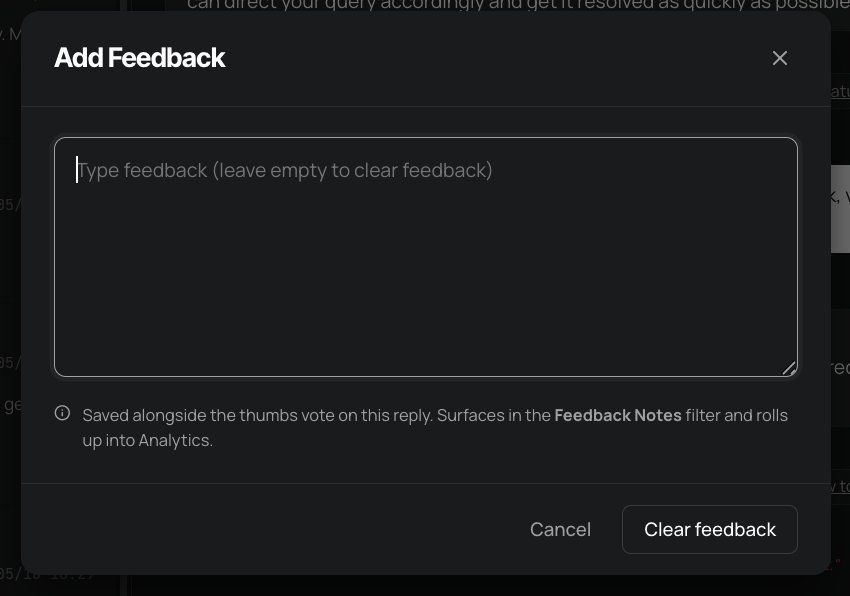
Feedback note
Opens the Add Feedback modal, a free-text textarea where you can explain what’s good or bad about this specific reply. Saved alongside the thumbs vote (you can have a note without thumbs, or vice versa). To clear an existing note, open the modal, empty the text, and click Clear Feedback.
AI Steps
Opens the AI Steps sidebar for this specific reply. The single most-used per-message action when debugging.
Generate Knowledge
Opens the Generate Knowledge modal seeded with this conversation. Turn a great reply (or a great human-agent response) into a permanent knowledge article in one step.
Replays and regeneration
The replay action on any bot message lets you re-run the agent against a selected version of the bot, useful for testing whether a prompt change, knowledge edit, or Rulebook update would have produced a better answer on this exact conversation.Per-message Replay menu
Open the message actions menu on a bot message, then use the Regenerate options:- This response only: regenerate only this single message. Everything before and after stays as-is; just this one agent turn is re-run.
- Until here: replay every agent response through this point. The menu shows the exact count, e.g.
3 replies, when there are three agent turns to regenerate.
- Reuse results: create a new answer using the same rule choices and saved rule results from the original reply.
- Simulate rule execution: test the latest rules while reusing saved results for matching external actions. This is the recommended default because it avoids live side effects.
- Run live actions: test the latest rules and run external actions again.
Original vs Replay tabs
Replays don’t overwrite the original conversation. Each replay creates a new version you can switch between in the conversation header, the toggle reads Original alongside Replay 1, Replay 2, and so on. Before any replay, the header shows0 REPLAYS next to the Original badge and a Replay… button. After the first replay, the header shows 1 REPLAY and a toggle between Original and Replay 1. Click any tab to switch the visible thread to that version.
This is the structure that makes “did my fix work?” verifiable: compare the original to the replay side by side. If the replay produces the right answer where the original didn’t, the fix is good. If it doesn’t, the AI Steps on the replay tell you what’s still failing.
Generate Knowledge from a conversation
When a conversation contains an answer you want Fini to know for next time, a resolution a human agent figured out, a piece of policy the bot hasn’t seen, an edge case worth documenting, the Generate Knowledge action turns the conversation into a knowledge article.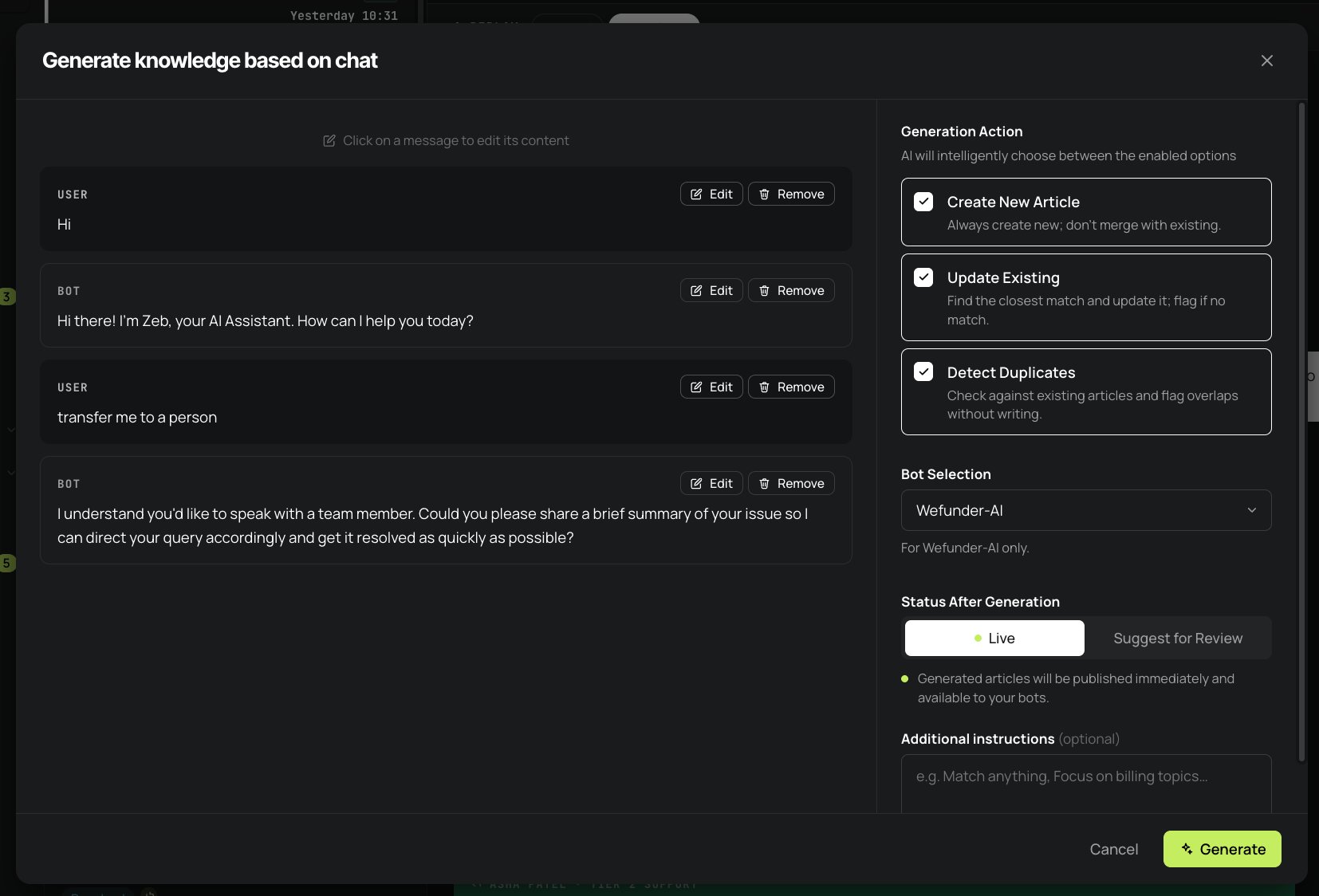
Conversation editor (left)
Every message in the conversation as a card. Edit to refine wording, useful when the customer was sloppy and the question’s intent is clearer than the original phrasing. Remove to drop messages you don’t want the article to be based on (greetings, off-topic side questions, internal notes).Generation Action (right)
Three independent toggles, all on by default:- Create New Article: always create a new article from this conversation. Don’t merge with existing knowledge.
- Update Existing: find the closest matching article in your knowledge base and update it with the new content. Flag if no match is found above the similarity threshold.
- Detect Duplicates: check against existing articles and flag overlaps without writing anything. Useful for “should this even be an article?” sanity checks before generating.
Bot Selection
Which bot’s knowledge base to write the generated article to. The dropdown lists every bot in the workspace; defaults to the currently-selected bot.Status After Generation
A toggle:- Live (default), generated articles publish immediately and are available to your bots from the next conversation onward
- Suggest for Review: generated articles queue under Knowledge → Reviews for an admin to approve before publication
Additional instructions
A free-text textarea for steering the generation in plain language, “Focus on billing topics. Skip generic greetings.” “Match anything related to refund policy.” Whatever sharpens the article without rewriting the conversation.When to use Generate Knowledge
Generate Knowledge is the production-to-knowledge loop. Use it when:- A human agent resolved a customer issue in a way the bot didn’t know how to. Their resolution is a knowledge gap; turn the resolution into an article.
- A bot reply was good but ad-hoc, and you want to lock that answer in as canonical knowledge.
- A conversation surfaced a policy or edge case that isn’t yet in your docs.
Adding to a Test Suite
The flask icon at the top of the Conversations list (next to the New button) is the entry point into Test Suite. Two flows from here:- Click the flask icon when you have no existing test set, Fini opens the test set creation wizard with the option to seed scenarios from your Inbox conversations.
- Use the + Add from inbox button inside an existing test set, appends one or more Inbox conversations as new scenarios in that set.
- Knowledge gaps → Generate Knowledge → permanent article
- Behavior the bot should always exhibit → Add to Test Suite → permanent regression check
Testing new conversations
The New button at the top of the Conversations list starts a fresh conversation with the currently-selected bot. You type as the customer; the bot responds. Every reply has full AI Steps and feedback affordances, identical to real conversations. Three high-leverage uses:- Reproduce a bug a customer reported. Type roughly what they said. Watch the agent respond. Open AI Steps on the bad reply, find the failing step, fix at the source, then replay.
- Explore an edge case before it shows up in production. “What does the bot do if a customer asks about cancellation when their account is already closed?” Type the prompt with the right metadata; trace the response.
- Onboard new teammates. Walk through canonical scenarios live, opening AI Steps on each reply so they see exactly what the agent’s doing under the hood.
Custom metadata for testing
Because Inbox-UI conversations are fully editable, you can click Metadata and paste a JSON payload to test how the bot behaves with specific user context, a VIP customer, an off-hours conversation, a particular plan tier, an enterprise account, a fresh trial user. This is the closest equivalent to a sandbox in Fini; the resulting conversation is persisted in Inbox just like any real one, with full AI Steps for every reply.A worked debugging example
Concrete pattern for “the agent gave a wrong answer to a customer.” The situation: A customer asks “I want to cancel my subscription, but I’m being charged twice” and the agent responds with a generic “here’s how to track your subscription” reply instead of escalating to billing.1
Find the conversation
Open Inbox, select the right bot, narrow the date range to the last 7 days. Set Fini Touched: Yes. Add a text filter on Question for “cancel” or on Answer for “track your subscription.” The candidate set drops to a handful; the failing conversation is one of them.
2
Open AI Steps on the failing reply
Click the light bulb on the agent reply that was wrong. The sidebar opens.Planning says: “The user is asking about subscription tracking. No escalation needed.” That’s already a misread, the user asked about cancellation, not tracking.
3
Trace where the misread happened
Scroll to Executed Rule. Three rules ran:
- “Subscription cancellation flow”: short-circuited at a
Checknode (red) checking whether the user mentioned “cancel” - “Billing inquiry, overcharge”: short-circuited at a
Checknode (red) checking whether the user mentioned “overcharge” or “double charge” - “Subscription tracking how-to”: passed all checks (green), produced the reply
Check conditions were too narrow.4
Confirm by reading the failed Checks
Click into the cancellation rule’s
Check node, it was looking for the exact word “cancel” in the message. The customer said “cancel my subscription”: so it should have matched. But the rule’s input was a normalized version of the message that stripped the verb. Misconfigured.5
Fix at the source
Open Rulebook, find the cancellation rule, fix the
Check node’s matching logic. Publish.6
Replay to confirm
Back on the failing conversation in Inbox, open the message actions menu on the bot reply, choose Until here, and keep Simulate rule execution selected unless you intentionally want live actions to run. Fini re-runs the conversation. After a moment, the header shows
1 REPLAY with a toggle. Click Replay 1.The new reply: “I can help with that. Let me look up your billing details and escalate to a human if needed.” The fix landed.7
Lock it in
Click the flask icon at the top of the Conversations list. Add this conversation to your existing escalation regression test set. Going forward, every release will run this scenario and confirm the fix doesn’t drift.
Why a conversation isn’t appearing
The filter bar is excluding it
The filter bar is excluding it
Reset the filters, widen the date range, and make sure the bot picker is on the right bot. A common mistake: leaving an old Fini Touched: Yes filter on while looking for a conversation Fini never replied to.
The channel filter is too narrow
The channel filter is too narrow
The top-right Channel: Chat / Email selector applies on top of the chip filters. If the conversation arrived on the channel you’re not viewing, switch.
The bot picker is set to a different agent
The bot picker is set to a different agent
All conversations are bot-scoped. A conversation handled by a different bot in the same workspace won’t appear in Inbox until you switch the bot picker.
The conversation arrived on a channel that isn't connected
The conversation arrived on a channel that isn't connected
Inbox only mirrors conversations from connected sources. If a channel was disconnected at the time the conversation came in, it won’t be present. Check connections under Deploy.
It's older than the retention window
It's older than the retention window
Conversations are retained for a configurable period. Conversations older than the workspace’s retention window may have been pruned. Talk to your Fini contact if you need to extend retention or recover something.
Text filters are literal, the conversation is in a different language than your search
Text filters are literal, the conversation is in a different language than your search
The Question and Answer text filters do literal text matching. If a conversation came in in Spanish and you’re searching for English keywords, it won’t surface. Search in the customer’s language, or use Tags / Source / Feedback to find it instead.
The customer's first message is empty (subject-only conversation)
The customer's first message is empty (subject-only conversation)
Some CRM tickets sync with just a subject and no body, or the first turn was an attachment without text. These conversations show
(Empty subject line) in the list and can be hard to spot. Filter by Source or by tags to find them.