Product location
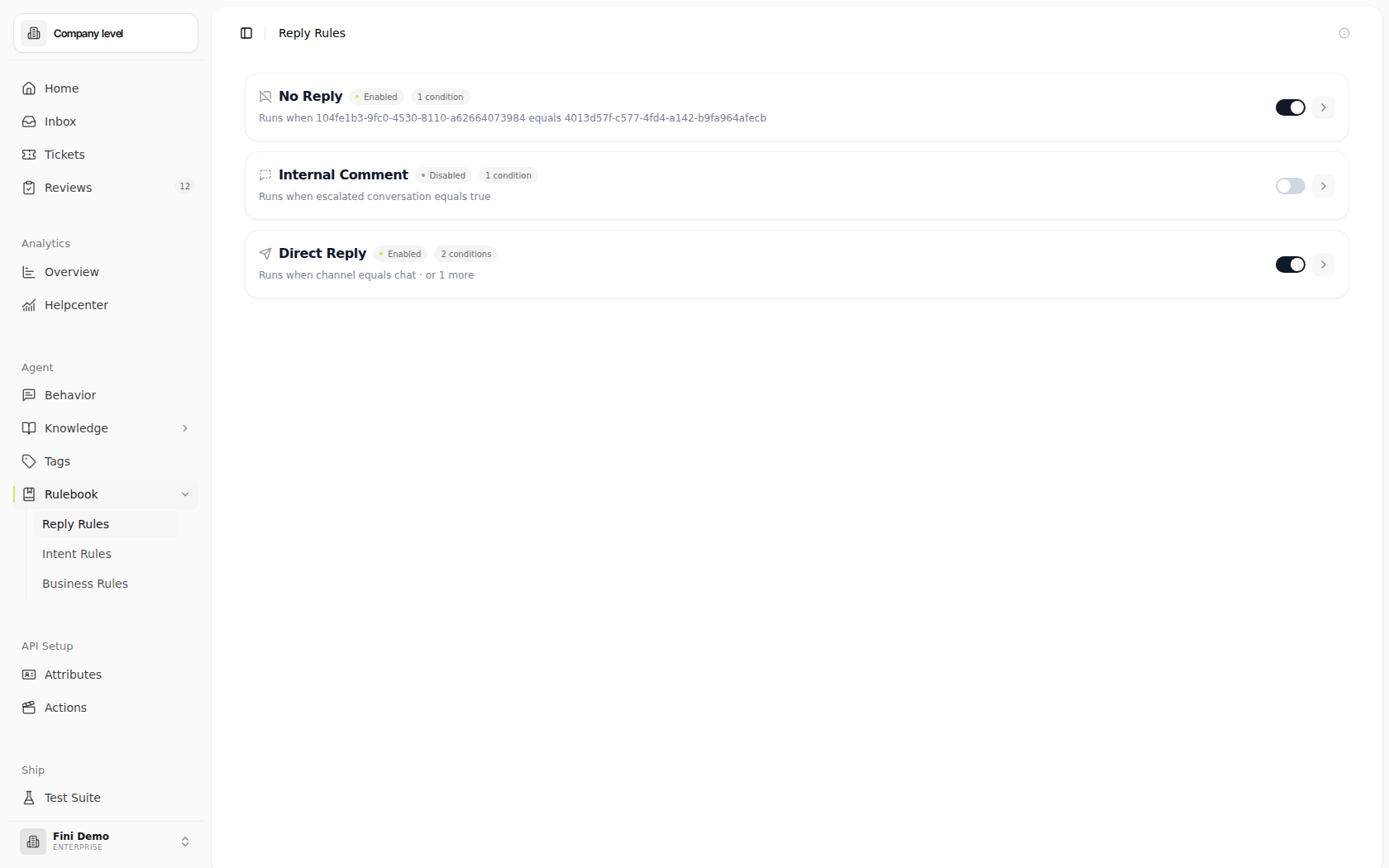
Open Rulebook → Reply Rules in the dashboard sidebar. This docs page covers only Reply Rules. Intent Rules and Business Rules have their own pages.The three reply types
The page shows three cards, one per reply type. Each card is independent, you can configure rules on all three, just one, or none.
Terminology for the internal note varies by integration, Internal Note in Zendesk and Intercom, Internal Comment in Front, Case Comment in Salesforce. The behavior is the same: customer-invisible.
When multiple cards match
The three cards evaluate independently, a single conversation can match conditions on more than one. When that happens, the stricter behavior wins, in this priority order:- No Reply, highest priority. If a conversation matches a No Reply condition, the agent stays silent, even if Internal Comment or Direct Reply conditions would also match.
- Internal Comment, wins over Direct Reply. If a conversation matches both an Internal Comment and a Direct Reply rule, the agent posts internally instead of publicly.
- Direct Reply, the default. Fires only when no higher-priority card matches.
What you can match on
Inside each card, the condition builder offers fields from three categories. The dropdown organizes them, System fields at the top, then your Tag Groups, then your User Attributes.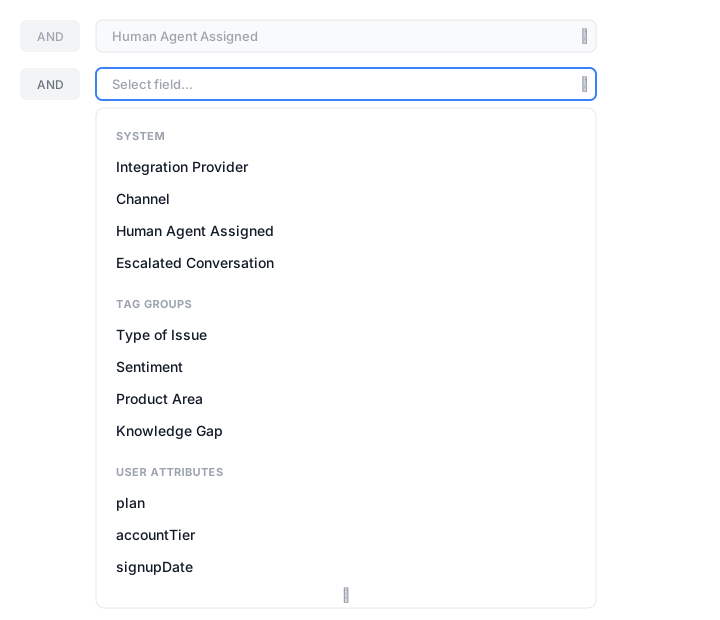
System fields
Always available. Resolved before any AI classification happens.Tag Groups
Every tag group configured for this account appears in the dropdown, General Tags, Errors, Type of Issue, Sentiment, and any custom groups you’ve built. Match against the tag values the model applies (e.g. Type of Issue equalsdisputes, Sentiment equals negative).
See Tags for how groups and their tag values are configured.
User Attributes
Every attribute returned by your User Attributes API appears here, plan tier, signup date, country of residence, package name, whatever your endpoint exposes. Use these to match on properties of who the customer is, not what the conversation is about. See Attributes for how the attribute chain is configured.Operators
Each predicate has an operator that controls how the field is compared against the value. The dropdown offers fifteen operators covering single-value comparisons, list membership, date ranges, and presence checks.Building a rule
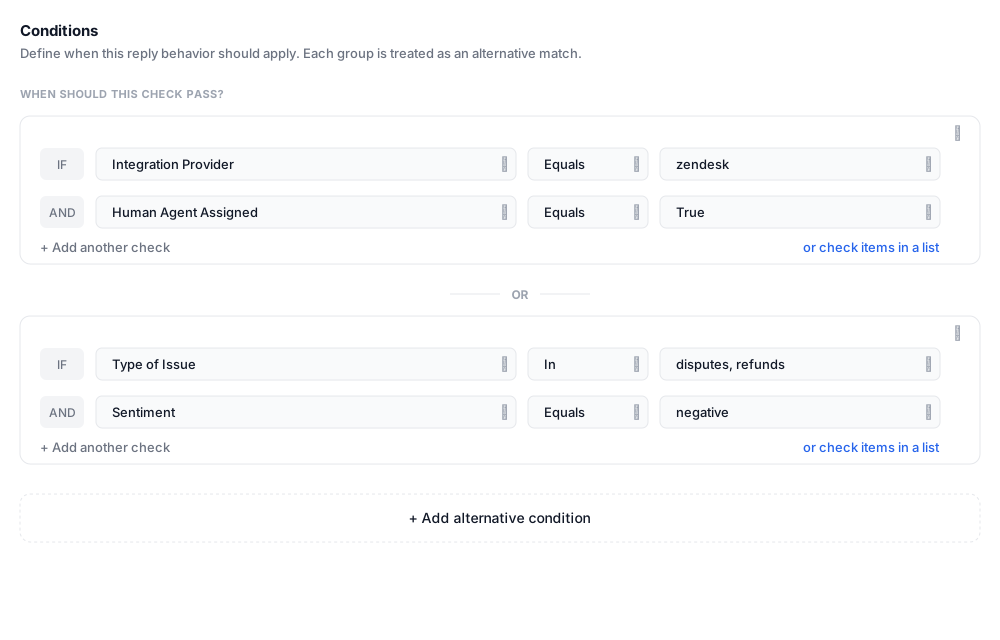
Click a card to expand it. The conditions builder uses two levels of grouping: predicates inside a group are joined with AND; groups are joined with OR.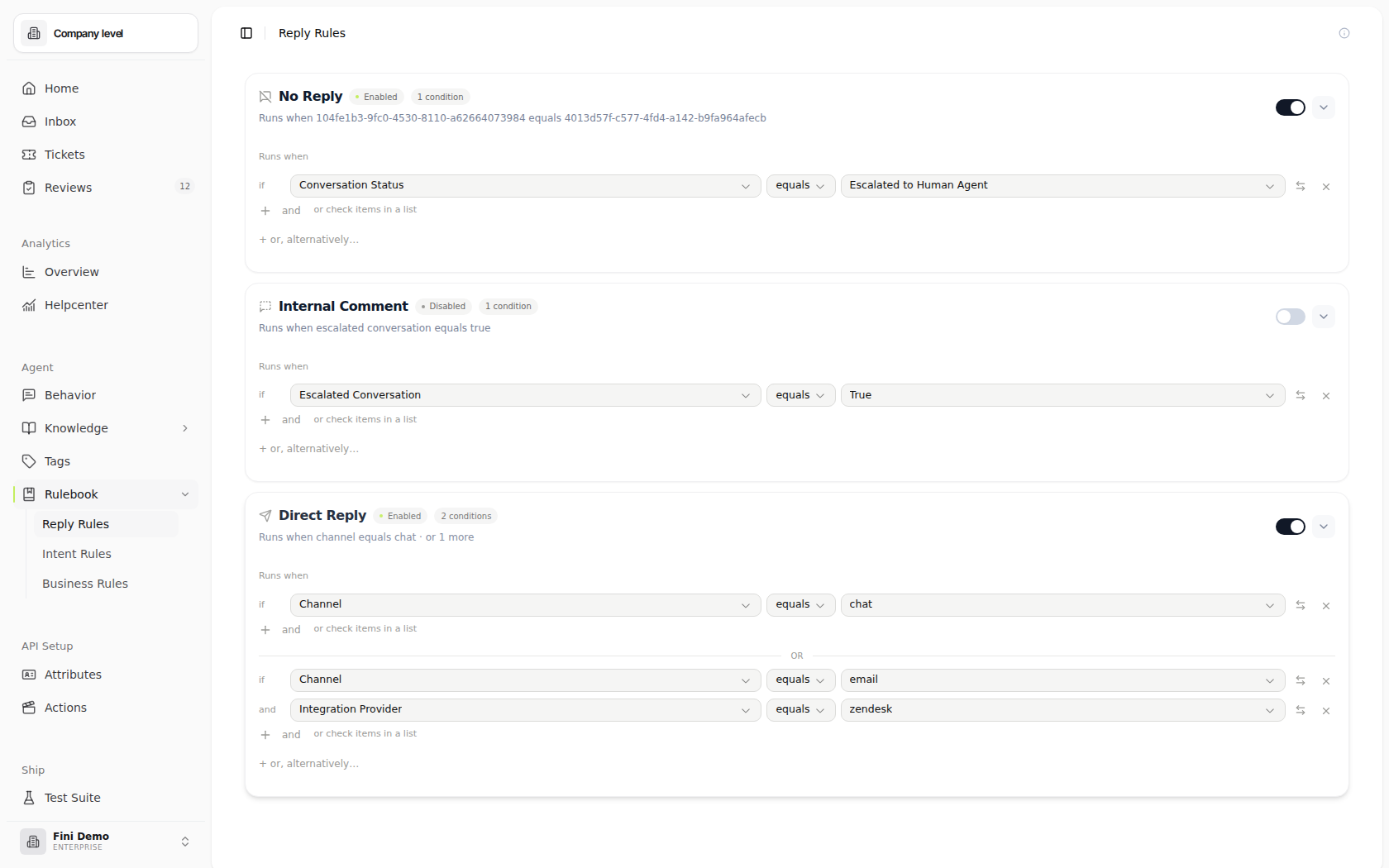
1
Pick the card
Click the card for the behavior you want to trigger (No Reply / Internal Comment / Direct Reply). The card expands to show the conditions builder.
2
Add predicates to the first condition group
Under When should this check pass?, each
IF / AND row is a predicate. Pick a field, pick the operator (typically Equals), and pick or type the value. All predicates in a group must be true for the group to match, they’re joined by AND.3
Add an alternative group (OR)
Click + Add alternative condition at the bottom. A new group appears below an OR divider. The card matches if any group matches, within each group, all predicates still have to match.
4
Enable the card
Toggle the switch in the card’s top-right to on. The card needs at least one complete condition before it can be enabled.
5
Save
Saving commits the rule. Unsaved edits prompt a confirmation if you navigate away.
Example rules
Five patterns drawn from common configurations. The Conditions column shows what goes in the condition builder; OR-joined condition groups are stacked with an OR divider between them.Why a rule isn’t firing
The card isn't enabled
The card isn't enabled
Saving conditions does not auto-enable the card. The toggle in the card’s top-right must be on. Look for the green
Enabled pill next to the card’s name.A higher-priority card matched first
A higher-priority card matched first
No Reply beats Internal Comment beats Direct Reply. If the conversation matches both the card you expected and a stricter one, the stricter card wins. Open the suspect conversation in the Inbox and check whether a No Reply or Internal Comment rule fired instead of the Direct Reply you were testing.
A Tag Group condition is waiting on classification
A Tag Group condition is waiting on classification
Rules that reference a Tag Group only fire once the model has tagged the conversation. If you’re testing on a brand-new conversation that hasn’t been classified yet, the rule won’t appear to fire. Open the conversation in the Inbox and check the AI Steps panel under Output Tag Selection to confirm the tag was applied.
A User Attribute condition references a missing field
A User Attribute condition references a missing field
User Attributes come from your User Attributes API. If the field name in your condition doesn’t match what the API returns (typo, casing mismatch, attribute not yet added to the chain), the predicate evaluates to false. Check Configuration → Attributes to confirm the field is configured and returning a value.
The Integration Provider value is wrong
The Integration Provider value is wrong
Integration Provider values are exact strings (
zendesk, intercom, front, etc.), case matters. If the predicate uses Zendesk but the system stores zendesk, the rule won’t match. The condition builder’s dropdown shows the canonical values.A predicate row was left incomplete
A predicate row was left incomplete
A predicate with no value selected evaluates to false, which can prevent its group from matching. Walk through each row in the expanded card and confirm every field, operator, and value is filled in.
Related
Tags
Configure the tag groups whose values you reference in Reply Behavior conditions.
Attributes
Define the User Attributes API chain that exposes customer fields for matching.
Rulebook
Once Reply Behavior decides the agent should reply, the Rulebook decides how, which flow, which actions, which response template.
Inbox
Audit Reply Behavior decisions by opening a conversation and reading the AI Steps panel to see which fields matched.