

Business Rules currently run for the widget source on the On Escalation trigger. That means they execute when a widget user escalates to a human agent.
What Business Rules are for
Use Business Rules when escalation itself needs business logic. Common examples:- Create or update a ticket when the customer asks for a human.
- Include conversation history and user attributes in the handoff.
- Set escalation state on the conversation after a rule runs.
- Send a final customer-facing message with ticket or handoff details.
- Apply different escalation behavior for different bots.
How Business Rules run
Business Rules run from a configured business event, not from message intent. The current supported source iswidget, and the current supported trigger is on_escalation.
The Business Rules backend is separate from Intent Rules: Business Rules are stored and updated directly, use their own agent assignment junction, and expose dedicated /business-rules API routes. The shared rule engine handles behavior-tree validation and execution.
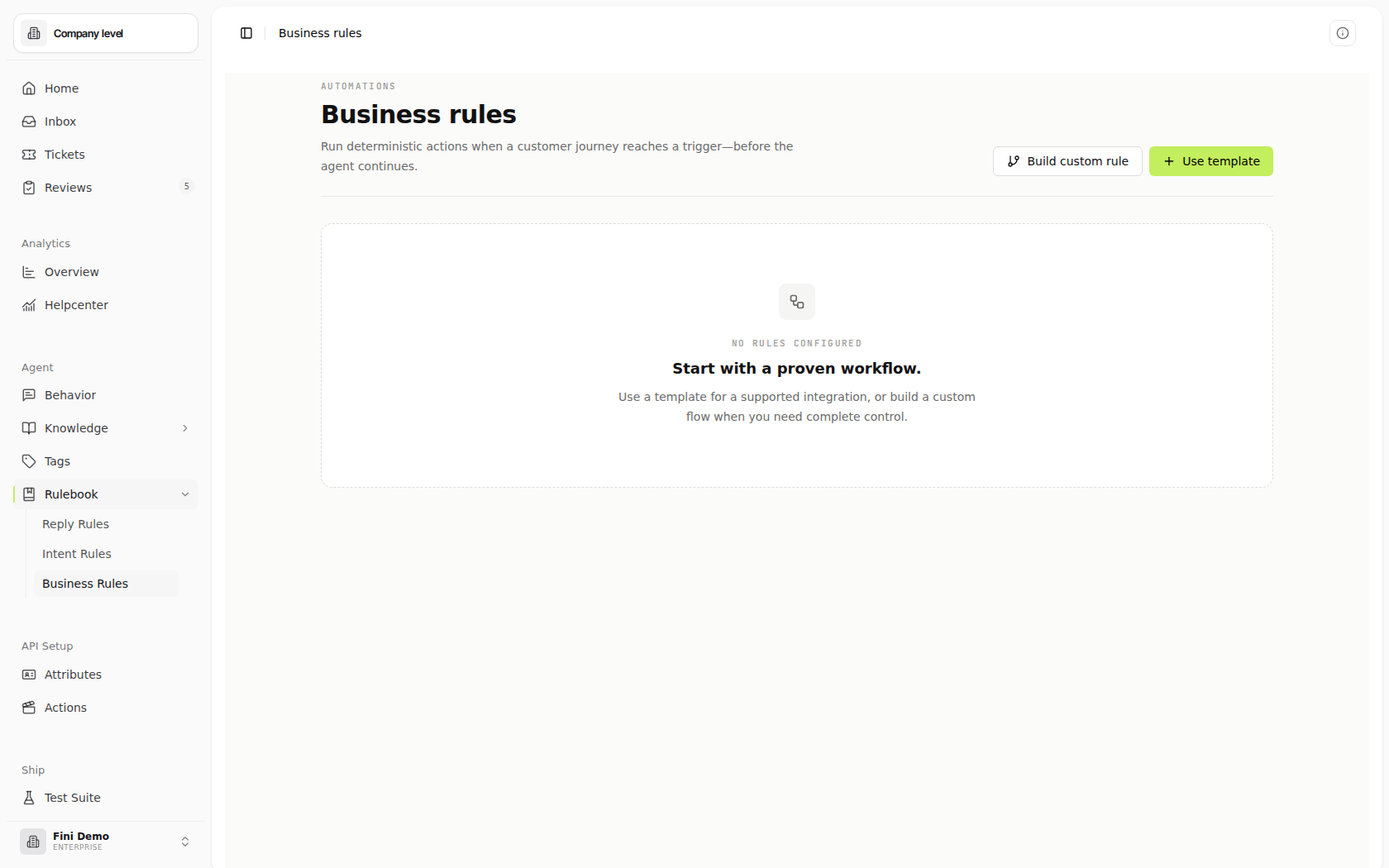
The Business Rules page
The Business Rules page lists the rules in your workspace. Each rule card shows:- Rule name and description.
- Whether it is Template or Custom.
- Source, such as Widget.
- Trigger, such as On Escalation.
- Created date.
- For custom rules, the number of nodes in the behavior tree.
- For each rule, how many bots it is assigned to, or whether it is still unassigned.
- For template-based rules, a preview of mapped input fields.
- Test to evaluate the rule with sample context.
- Edit to update the template mapping or custom behavior tree.
- Open the overflow menu to Duplicate Rule for custom rules, or Delete the rule.
Create from a default rule
Default rules are pre-built templates. They are the fastest way to configure a standard escalation workflow without building the full tree from scratch. Widget escalation templates currently cover Zendesk, Front, Salesforce, HubSpot, and Gorgias destinations when the matching integration is connected. HubSpot templates can create a ticket directly or submit a published HubSpot support form. Support-form templates only show forms that include Fini’s interaction ID ticket property, so the submitted form can be tied back to the widget conversation that escalated.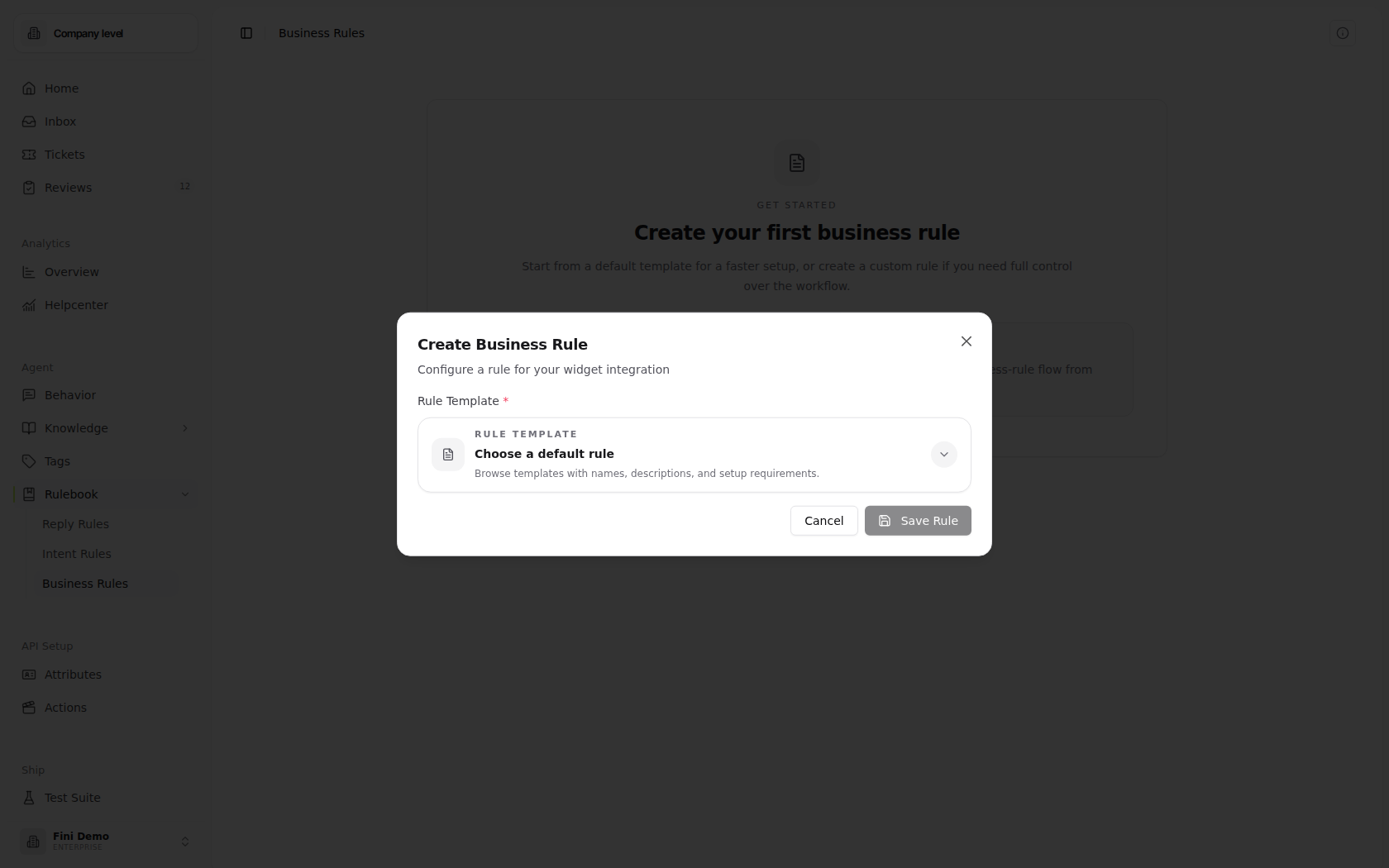
1
Click Use Default Rule
Open Rulebook → Business Rules and click Use Default Rule.
2
Choose a rule template
Select the default rule that matches the workflow you want. The modal shows the template description, source, trigger, and required field count so you can confirm what it does before creating it.
3
Map required fields
Each template declares an input schema. Map each required field to a context field, or provide a fixed value when the template allows it.
4
Assign bots
Select the bots this Business Rule should apply to. The rule only runs for escalations from assigned bots.
5
Save
Saving creates the Business Rule from the selected template.
Field mappings
Template fields can be filled in two ways:
The field picker can include standard Business Rule context, such as:
- Interaction History Transcript
- Interaction ID
- Formatted User Attributes
Create a custom rule
Use Create Custom when you need full control over the escalation workflow. Custom Business Rules use the same behavior tree editor as Intent Rules. You can add nodes, configure conditions, call Tools, and send messages. The editor also shows Business Rule metadata:1
Click Create Custom
Open Rulebook → Business Rules and click Create Custom.
2
Describe the rule
Give the rule a clear name and description. The description is required for new custom Business Rules.
3
Confirm source and trigger
Set Source to Widget and Trigger type to On Escalation.
4
Build the behavior tree
Add the steps the escalation should run, such as Checks, Tools, and Send Message actions.
5
Assign bots and save
Select the bots that should use the rule, then save.
Testing a Business Rule
Use Test from the rule card before relying on a rule in production. Testing runs the rule against sample input context and shows the execution result. For Business Rules, the test context is built from the fields the rule needs. Template-based rules use their mapped inputs. Custom rules can preview the fields required by the current tree. The test modal opens with Runtime inputs, a form generated from the rule’s required fields. Use Advanced JSON when you need to paste or edit the full input context directly. Typical test fields include interaction context and user attributes. Use testing to verify:- Required fields are mapped.
- Fixed values have the expected type.
- Checks pass or fail for the right conditions.
- Tool outputs are available to downstream nodes.
- The final send-message behavior is correct.
What happens at runtime
When a widget conversation escalates:- Fini finds Business Rules assigned to the conversation’s bot with source Widget and trigger On Escalation.
- It evaluates the matching rules with the interaction context, user attributes, transcript, and interaction ID.
- If a rule sends a message, Fini creates a new widget message from the agent.
- If a Tool returns escalation metadata, Fini updates the interaction with the external ticket ID or ticket URL.
- If no Business Rule applies, no destination ticket is created by the Business Rules runtime. Add or assign a matching Business Rule when widget escalations should create a ticket in an external helpdesk.
Best practices
- Start from a default rule when the workflow matches a standard escalation pattern.
- Use custom rules when the escalation logic has real branching or provider-specific behavior.
- Assign rules only to the bots that should use them.
- Keep field mappings explicit. Required fields should map to stable context fields or fixed values.
- Test each rule before relying on it for customer escalations.
- Keep Business Rules focused on escalation. Use Intent Rules for normal in-conversation workflows.
Troubleshooting
The rule did not run
The rule did not run
Confirm the rule is assigned to the bot, has source Widget, and has trigger type On Escalation. Business Rules do not run on normal messages.
A template cannot be saved
A template cannot be saved
Required template fields must be mapped to a field or filled with a fixed value. Open the template modal and check every required field.
A Check fails during testing
A Check fails during testing
Check whether the field exists in the test context and whether the value type matches the operator. For example, number fields need numeric values and boolean fields need true or false.
No message was posted after escalation
No message was posted after escalation
The rule may have run without producing a send-message result. Inspect the rule tree and confirm the success path includes the message you expect.
Related
Intent Rules
Build deterministic workflows that run during normal conversation handling.
Reply Rules
Decide whether the agent replies, leaves an internal note, or stays silent.
Attributes
Configure user fields that rules can reference.
Inbox
Inspect conversations and debug what happened during escalation.